 Joyrise
How to Build Workflows With ChatGPT (2026 Guide)
 By Alexi · · 12 min read

On this page
- Before You Start: Prerequisites and Safety Notes
- Step by Step: Build Your First Team Workflow with Workspace Agents
- Complete Worked Example: Automating a Content Idea Approval Workflow
- How Much Does It Cost to Run Team Workflows in ChatGPT?
- Troubleshooting Common Workspace Agent Issues
- Going Further: Advanced Workflow Ideas and Long-Term Automation
- Key Takeaways
How to build workflows with ChatGPT? That’s the exact question this ChatGPT workflow guide answers. If you’ve been searching for a straightforward way to build workflows with ChatGPT that moves past single-user prompt tricks, the April 2026 release of workspace agents changes what’s possible. Teams can now create shared, long-running agents that pull in external tools, respect granular permissions, and operate without you standing over them. This guide walks through the real setup — not a concept, a concrete build — using the new workspace agent interface and the Model Context Protocol (MCP) to connect services like Typeform, all inside your organization’s ChatGPT workspace. This kind of ChatGPT automation turns a simple chatbot into a persistent team workflow agent.
Before You Start: Prerequisites and Safety Notes
Who This Guide Is For
Founders, operations leads, and finance-minded operators who need to turn repeatable team processes — content approvals, lead triage, customer request routing — into automated ChatGPT workflows without waiting on engineering. You already know prompt chaining won’t cut it for shared, long-running tasks. You’re ready for an agent that multiple people can rely on, not a personal chatbot.
Tools, Access, and Permissions You Need
Workspace agents require a ChatGPT Business, Enterprise, or Edu plan — personal Plus and Pro plans don’t include the shared workspace features you need. Confirm your account type in the bottom‑left of the ChatGPT interface. You also need:
- Workspace admin or member with “create agents” permission. By default, workspace admins can grant this.
- Access to the workspace’s settings panel (gear icon in the sidebar).
- For MCP integrations, your tools must expose an MCP server endpoint. Check with your vendor; Typeform’s MCP server was announced November 10, 2026 and is publicly available. This MCP integration ChatGPT support allows native tool calling.
- A clear map of the workflow’s steps, roles, and data flow — you’ll define these before you build.
Safety note: Treat every workspace agent as a persistent process. It can read, act, and store data across tasks. Before deploying, ask: what data will it touch, and who should see the outputs? Set the narrowest permissions first, then expand only if needed. Never grant an agent access to sensitive data stores without a rollback plan.
What are workspace agents in ChatGPT?
OpenAI introduced workspace agents on April 22, 2026 (source: Introducing workspace agents in ChatGPT). They are shared, configurable AI helpers that run inside a team’s ChatGPT workspace. Unlike a single chat session, an agent can persist across conversations, handle multi-step tasks in the background, and integrate with outside tools via MCP. An agent has its own memory, instructions, tool‑calling abilities, and a set of people who can interact with it. Think of it as a digital team member that follows your process, not a one‑off prompt. This is the core of how to build AI workflows that span multiple people and tools.
What’s the difference between a GPT and a workspace agent?
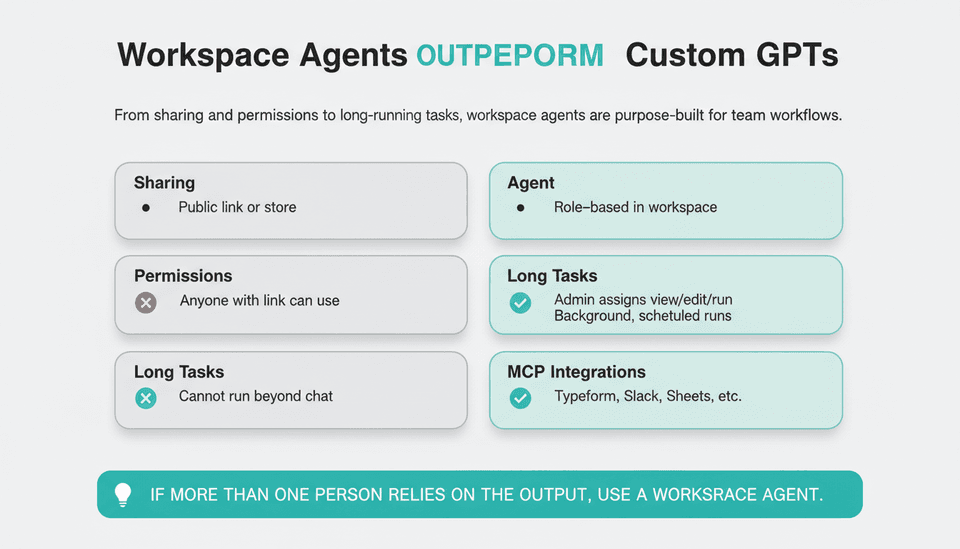
Custom GPTs are great for personal repeatability — load a prompt, upload a file, give it a name. But they live inside your personal account, lack fine‑grained sharing, and stop the moment you close the chat. Workspace agents are fundamentally designed for teams and ongoing operations. The debate of custom GPTs vs agents often comes down to scope.
The table below distills the differences that matter when you’re spending company time and money:
| Feature | Custom GPTs | Workspace Agents |
|---|---|---|
| Sharing | Via link, public GPT store. No team-wide governance. | Shared within a workspace; role‑based access. |
| Permissions | Anyone with link can use; no org‑level controls. | Admin sets view, edit, and run permissions per team member or group. |
| Long‑running tasks | Cannot run beyond a single chat session. | Designed to handle background tasks, queues, and scheduled runs. |
| MCP integrations | None natively; rely on actions (older API calls). | Directly connect external tools through MCP servers, now including Typeform, Slack, Salesforce, and more. |
| Session persistence | Resets when chat ends; context lost. | Maintains state across multiple user sessions and days. |
| Monitoring & rollback | No built‑in audit trail. | Workspace admins can view execution logs, pause agents, and roll back instructions. |
| Cost | Available on Plus ($20/mo) and above. | Included in ChatGPT Business ($30/user/mo, billed annually), Enterprise, and Edu plans. |
One bold opinion: If more than one person relies on the output, use a workspace agent. The time you save removing manual handoffs in the first month usually pays for the extra per‑seat cost.
Step by Step: Build Your First Team Workflow with Workspace Agents
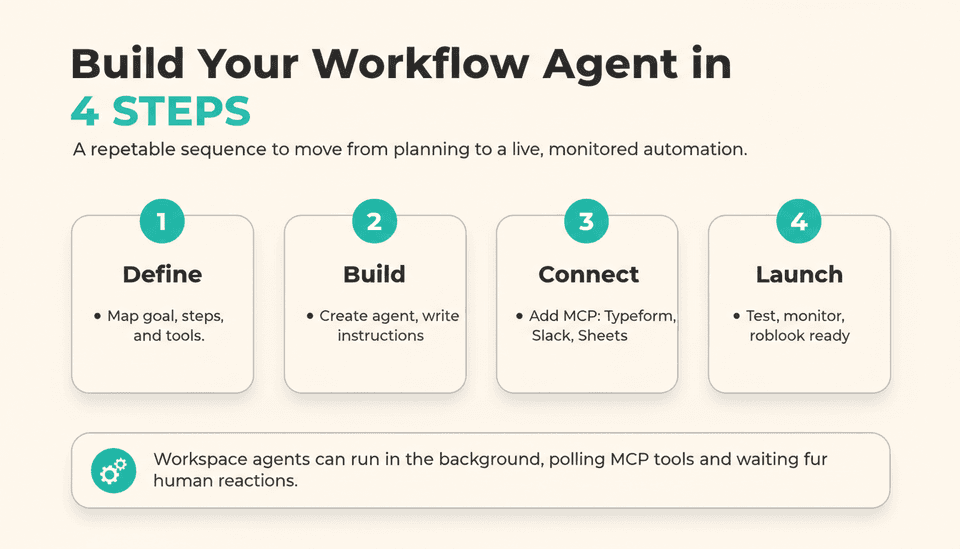
The example we’ll follow is a content idea approval workflow that captures suggestions from a form, routes them to a reviewer, and notifies the team on approval. It’s real and it exercises the core capabilities: MCP trigger, conditional logic, multi‑step state, and shared permissions. This mirrors the approach described in How to Automate ChatGPT for Your Work Tasks but realized through native workspace agents.
Step 1: Define the Workflow Goal and Map the Steps
Before opening a menu, write down exactly what this workflow needs to accomplish, who touches it, and the handoff sequence. Ours:
- Goal: Collect content ideas from sales and product teams, get editorial sign‑off, then push approved briefs to the content calendar.
- Steps:
- New idea submitted via a Typeform.
- Agent fetches the submission and summarizes it.
- Agent posts the summary to a designated Slack channel for the marketing editor.
- Editor approves or rejects with a reaction (thumbs‑up/thumbs‑down).
- On approval, agent creates a brief in a shared Google Sheet and notifies the writer.
- Agent logs all decisions in a workspace‑visible thread for audit.
You now have a clear sequence. If a step involves data from outside ChatGPT, note which tool you’ll need to connect via MCP.
How do I create a shared workflow agent?
After verifying you have the right plan and permissions:
- Click the workspace name in the sidebar, then Workspace settings.
- Navigate to the Agents tab and select Create agent.
- Give the agent a name — e.g., “Content Idea Approver” — and a description that tells your team what it does and when to use it.
- In the instructions field, paste the workflow steps as a numbered list. Be explicit about triggers, conditions, and fallback behavior. For instance: “When you receive a new Typeform entry, extract the headline and description, then post a message to #content-ideas in Slack. Wait for emoji reaction from any user in the editors group. If thumbs‑up, create a row in the ‘Approved Briefs’ sheet with columns A‑D populated. If thumbs‑down, reply in Slack with a note and log the rejection.”
- Under Capabilities, enable the tools the agent will need. Turn on Code interpreter if it will manipulate data. Turn on MCP integrations and select the servers you’ve connected (more on that next).
- Save the agent. It’s now available in the workspace but not yet shared.
This agent will appear in the team’s sidebar, ready to be summoned like any conversation. For those new to ChatGPT Work, the Get started with ChatGPT Work resource outlines the basic interface common to all plans.
Can I connect external tools like Typeform to ChatGPT?
Yes. As of November 10, 2026, Typeform is available as an MCP server directly inside ChatGPT, Claude, and other MCP‑compatible tools (PR Newswire, Nov 10, 2026). The connection relies on the Model Context Protocol — a standard that lets AI agents call external services without fragile, custom APIs for every integration. This is the heart of MCP integration ChatGPT uses to extend automation.
To add an MCP server in ChatGPT Business/Enterprise:
- Go to Workspace settings > Integrations > MCP Servers.
- Click Add server, enter the endpoint URL provided by your tool (Typeform’s documentation gives the exact URL).
- Authenticate with your tool’s OAuth flow. The agent will store the token securely, subject to workspace data policies.
- Once added, the server appears in the agent capabilities list. You can enable it per agent.
Other MCP integrations are also rolling out. OpenAI announced workspace agents with Slack and Salesforce integrations (Crypto Briefing, Nov 11, 2026). The list grows quickly, but the principle is the same: connect once, then let any workspace agent use that tool when needed.
What permissions do workspace agents need?
Permissions run on two levels: what the agent can do with its connected tools, and who in the workspace can interact with the agent.
Tool permissions:
When you connect an MCP server, the integration typically grants the agent the same scope you authorized. For Typeform, you can restrict the agent to read only certain forms. For Google Sheets, you might allow create/update in one specific spreadsheet. Always scope to the minimum. A good first rule: never give write access until the read‑only flow works correctly for a full day.
User‑facing permissions:
Return to the agent’s settings, under the Sharing & access tab. You can assign:
- Run: Can invoke the agent and see its responses.
- Edit: Can modify instructions and add capabilities.
- Manage: Can delete the agent, change sharing, and view logs.
For a content approval workflow, you’d likely give editors the Edit role (they may tweak the brief template) and everyone else Run. The agent’s audit log shows who triggered which step, so you can later review abnormal behavior.
Step 5: Test and Monitor the Workflow
With the agent saved and shared, run through the entire sequence with test data:
- Submit a dummy Typeform entry.
- Open a chat with your agent in the workspace and type: “Check for new ideas and run the workflow.” (Alternatively, you can set the agent to poll on a schedule using a simple cron‑style prompt; some teams use a lightweight Make.com webhook to trigger the agent periodically.)
- Verify the agent posts to Slack. Confirm the emoji reaction triggers the correct branch.
- Check the Google Sheet for the new row.
- Look at the agent’s thread. It should contain a timestamped log of each action.
OpenAI’s workspace agent console includes a Run history view. Watch for errors there. If something fails, you can roll back the agent to a previous saved version — versioning is automatic when you edit instructions.
Complete Worked Example: Automating a Content Idea Approval Workflow
The Setup
We connected Typeform as an MCP server and enabled it for our “Content Idea Approver” agent. The Typeform collects required fields: idea headline, target persona, suggested format, and the submitter’s name. Our workspace also had the Slack and Google Sheets MCP servers active.
Agent instructions (condensed):
You are a content idea approval agent. Your tasks:
- Every 30 minutes, fetch new submissions from the Typeform “Content Ideas” form.
- For each new entry, create a summary: headline, persona, format, submitter.
- Post the summary to the #content‑ideas Slack channel. Include a unique submission ID and ask editors to react with :+1: or :-1:.
- Monitor the message for reactions. If an editor reacts with :+1:, open the Google Sheet “Approved Briefs”, add a row with the headline, the editor’s name (extract from the reacting user), and the timestamp. Then notify the submitter via DM.
- If :-1:, post a thread indicating rejection and log the reason if provided.
Permissions: The marketing editor had Edit; the rest of the team had Run.
Running the Agent
After activating the agent, the first poll returned three test submissions. Within two minutes, three Slack messages appeared. The editor reacted to one with a thumbs‑up. The agent detected the reaction, added a row to the sheet, and sent the submitter a direct message: “Your idea ‘How AI Agents Reduce SaaS Churn’ was approved. A brief is ready.”
The logs showed each decision, and the run history confirmed zero errors. Rollback to a previous version was not needed.
Success Criteria and Checkpoints
- Submission picked up within 30 minutes of form entry.
- Agent never missed a reaction; no duplicates.
- Sheet row contained correct editor name from Slack user ID.
- All steps visible in workspace admin logs.
If you get these checkpoints, the workflow is production‑ready.
How Much Does It Cost to Run Team Workflows in ChatGPT?
Pricing depends on the plan and the number of users who need to invoke the agent. At a base level:
| Plan | Agent availability | Estimated cost per user/mo (USD) | Notes |
|---|---|---|---|
| ChatGPT Plus/Pro | Not available | $20‑$200 | No workspace agents. |
| ChatGPT Business | Included | $30 (annual billing) | 5‑seat minimum, includes 200+ MCP actions/mo per workspace; additional usage may incur per‑action fees. |
| ChatGPT Enterprise | Included | Custom quote | Unlimited MCP calls, advanced data controls, priority support. |
| ChatGPT Edu | Included | Custom quote | Tailored for academic institutions. |
In practice, a team of 10 running workflows like our content approval example costs $300/month on Business, plus any third‑party tool costs (Typeform, Slack, Google Workspace remain separate). That’s a fraction of building a custom internal app. For SEO‑focused content pipelines, platforms like Joyrise can further automate article generation and Webflow publishing, reducing manual writing steps — but the agent layer remains what controls routing, review, and cross‑tool orchestration.
Troubleshooting Common Workspace Agent Issues
How do I troubleshoot agent failures?
Start from the agent’s run history, not the chat. Errors surface there even if the agent’s message back to the user says “Done.” The symptoms below cover the most frequent early failures.
Agent Not Responding or Times Out
- Cause: The agent was assigned a task that exceeded the workspace timeout (usually 10 minutes for a single background run).
- Fix: Break the workflow into smaller, chained prompts. Instead of “process all entries,” tell it “fetch entries, process one, then wait for the next prompt.” You can schedule the prompts with a lightweight cron trigger.
Integration Errors with External Tools
- Symptom: “Could not connect to MCP server” or an authentication error in the logs.
- Fix: Check the MCP server status in workspace settings. Re‑authenticate if the token expired. Verify that the tool’s endpoint URL is reachable from the ChatGPT infrastructure — some custom MCP servers need a public URL. For Typeform, the official server endpoint is maintained by Typeform and stable; re‑auth usually resolves transient issues.
- Symptom: Agent has read‑only access but tries to write. The tool returns a 403.
- Fix: Review the OAuth scope granted. Adjust permissions on the tool side, then disconnect and reconnect the server.
Users Report Unexpected Behavior
- Symptom: Agent responds with outdated instructions or uses old data.
- Fix: Check if a human edited the agent’s memory or uploaded conflicting files. Clear the agent’s conversation memory manually (there’s a “Reset conversation” option in its thread) or roll back to a previous instruction version.
- Symptom: Different team members get different results.
- Fix: Permissions are likely too broad. Confirm that all users in the shared agent see the same context by checking that no one accidentally started a private clone of the agent. Workspace agents show a distinct icon; private clones will look like custom GPTs.
Bold rule for all failures: Always compare the run history to the tool’s own audit log (Slack message timestamps, Google Sheet version history, Typeform response timestamps) – the mismatch tells you exactly which step broke.
Going Further: Advanced Workflow Ideas and Long-Term Automation
Once your team trusts a simpler workflow like content approvals, you can scale the pattern:
- Customer ticket routing: Ingest support emails via a Gmail MCP server, have the agent classify urgency, and assign to the right Slack channel or Jira board. Permissions gate who sees which tickets.
- Inventory restock alerts: Connect Shopify and a warehouse inventory API. The agent monitors SKU levels and creates purchase‑order drafts in Google Sheets when stock drops below threshold, then pings procurement.
- SEO content pipeline orchestration: Use the agent to pull keyword gaps from Search Console, pass briefs to a content platform like Joyrise for AI‑assisted drafting, and route completed articles through editor review before automatically publishing to Webflow. The agent handles approvals; the platform handles writing and publishing.
Workspace agents support long‑running tasks, meaning you can let one agent sit in the background for days, polling APIs, waiting for events, and only surfacing when a human decision is required. The shift from “I chat with AI” to “the team relies on an agent that works while we do other things” is the real unlock.
For a deeper look at how AI agents are reshaping SEO work specifically, the Definitive Guide to SEO AI Agents (2026) covers agent types and their place in modern search workflows.
Key Takeaways
- Workspace agents move ChatGPT from a personal copilot to a shared, persistent automation layer — they’re the foundation for team workflows that mix AI reasoning, external tools, and human approvals.
- Connect tools natively through MCP servers like Typeform, Slack, and Google Sheets instead of fragile custom APIs; each integration is configured once and reused across agents.
- Set permissions early and test in read‑only mode before granting write access — agent logs and rollback are essential safety nets when scaling across a department.
- Start with a concrete, bounded workflow (content idea approval is perfect) to prove value, then extend to higher‑stakes processes like ticket routing or inventory monitoring.
- Budget around $30/user/month for the ChatGPT Business plan, plus your existing SaaS costs — far cheaper than building custom orchestration middleware.
When your team is ready to automate content creation end to end, pairing ChatGPT workspace agents with a publishing platform like Joyrise can turn approved ideas into published articles without manual handoffs. You can try Joyrise’s automated content platform at joyrise.ai.